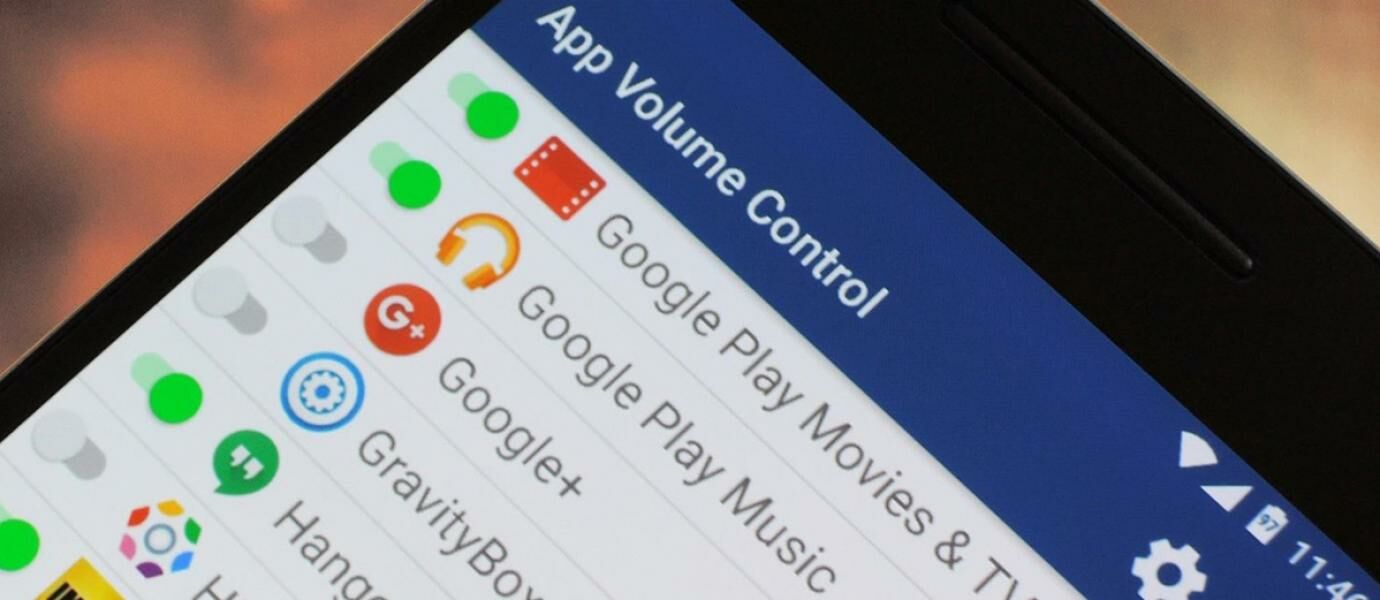
Android smartphone or tablet today are increasingly sophisticated. You can almost do anything thanks to the strong hardware, the operating system continues to grow, and support the many applications that are available with very diverse functions. In addition, some smartphone also supports multi-window like in the computer.
Well, usually Android has a separate volume control, the volume of multimedia and volume of the ringing tone. Unfortunately, many times when we're doing multitasking, such as streaming video and other applications open, when you want to adjust the volume media but instead the volume of ring tones are replaced. As a result, we had to fiddle with the volume level to get the best experience. Quite inconvenient is not? Well, reported from WonderHowTo, Jaka have an application that can automatically adjust the volume.
Sophisticated! Here's How to Set a Different Volume on Any Android App
1. Install the App Volume Control

Is an application called App Volume Control, which lets you set up each application with a volume level automatically and vary according to your wishes. That's the premise of the application made by the developer SpyCorp, adjust the volume level on a per-application basis. Relax, this application is very simple to use, does not require root access and completely free.
Install Volume Control App from Google Play Store
2. Enable Accessibility

After you install and open, so that Volume Control App can work, you must turn on accessibility settings. Just press the "Press here" to go directly to the accessibility settings and enable App Volume Control or by going to settings and select accessibility.
3. Set Volume Level Different Every Application
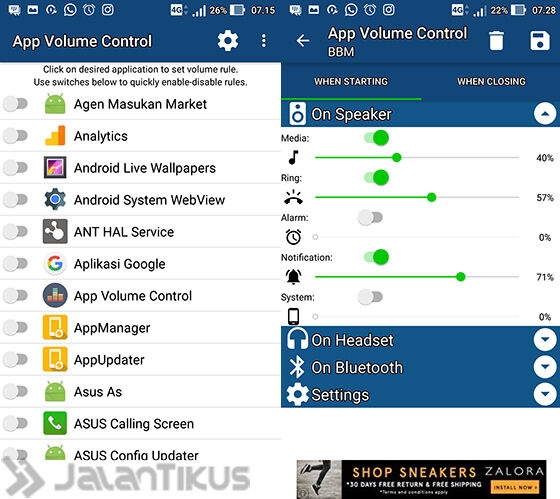
After accessibility settings enabled, return to the App Volume Control and now you will see a list of all applications that are installed on your smartphone. From here, simply press any application to adjust the volume level individually.
For example here Jaka try to select the application of fuel, on the next screen you will see 5 different volume. As for whom, media, ring tones, alarms, notifications, and system. Staying just switch it on and set the volume level you want.
4. Disable Show Notifications (Optional)

From now on, the volume will automatically be set to a different level every time you open an application that you have done the configuration. One thing you need to do is open the Volume Control App settings and disable "Show notification".
If you do not turn off, it will display a notification of the application each time managed to do its job and that too often must be quite disturbing. With this level of volume you will be changed automatically, what do you think?
Thank you very much because I've read blogger
One of the Best Internet Security Software:
BalasHapushttps://www.protegent360.com/antivirus.html
https://www.protegent360.com/protegent-total-security.html
https://www.protegent360.com/protegent-total-security.html